Keys not Displayed
Issue
In the LSP & Keys page, in the LSP and Keys section, the license keys are not displayed or available selection after clicking Retrieve next to the License Key field.
Explanation
Your firewall is blocking access to the Content API Server.
Solutions
If you have a firewall:
-
Configure your ports so that the Connector can communicate with the Content API Server. The URL of this server is https://api.clay-tablet.net/license/v1. For more information, see Configuring Network Settings for a Firewall.
-
Download or export the SSL certificate from the Clay Tablet License Server (https://api.clay-tablet.net/license/v1). For detailed instructions, see:
- Import the downloaded SSL certificate into your browser’s certificate store. For detailed instructions, see:
1 - Exporting an SSL Certificate in Google Chrome
This section provides detailed information about exporting an SSL certificate in Google Chrome:
To export an SSL Certificate in Chrome:
-
In the Chrome browser, go to one of the following URLs:
The page opens.
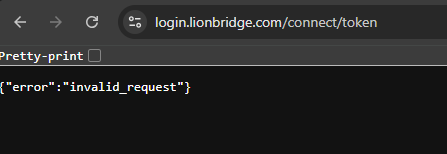
- Click the site information in the address bar.
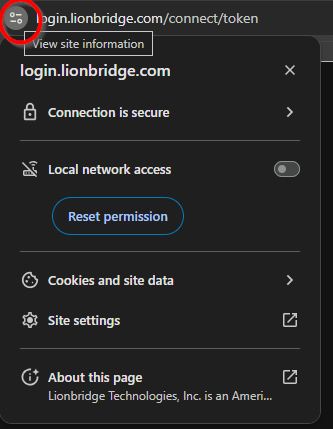
- Select Connection is secure.
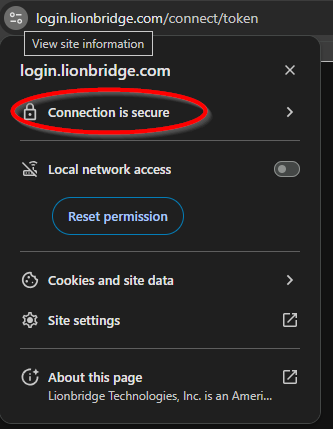
- Click Certificate is valid.
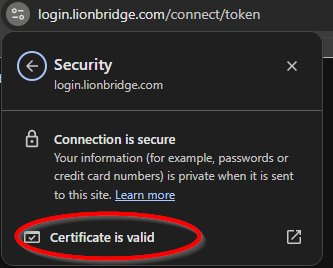
The Certificate Viewer dialog box opens, displaying the General tab.
- Click the Details tab to view it.
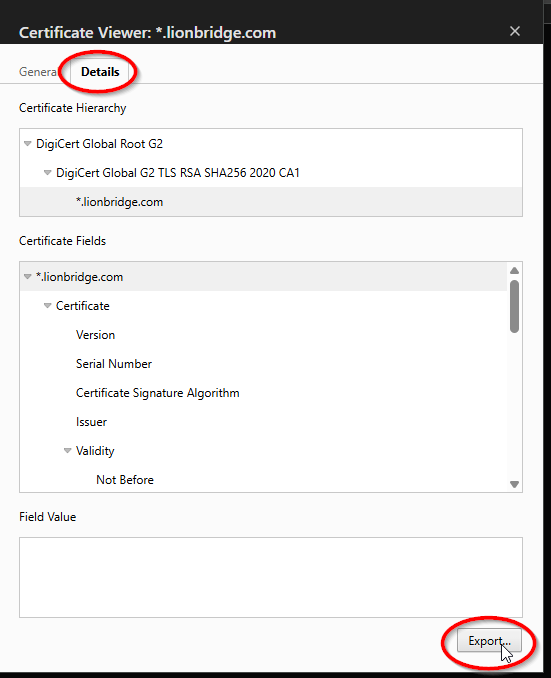
- Click Export.
After clicking the Export button, the browser prompts a Save As dialog to save the certificate file.
- When prompted to save the certificate:
- Choose the DER encoded certificate format.
- Save the file using the .cer extension.
Note: In some versions of Google Chrome, clicking Export saves the certificate file directly using the browser’s download mechanism.
- Next, you do one of the following:
2 - Downloading an SSL Certificate in Mozilla Firefox
This section provides detailed information about downloading an SSL certificate in Mozilla Firefox:
To download an SSL Certificate from Firefox:
-
In the Firefox browser, go to one of the following URLs:
The page opens.
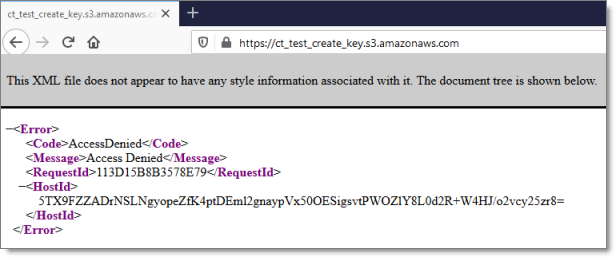
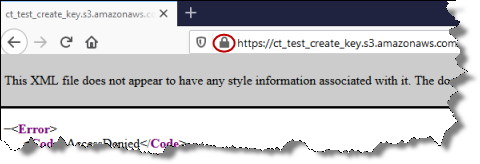
- Click the padlock in the address bar.
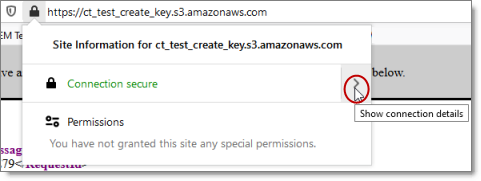
- Click the arrow beside Connection Secure.
- Click More Information.
The Page Info dialog box opens.
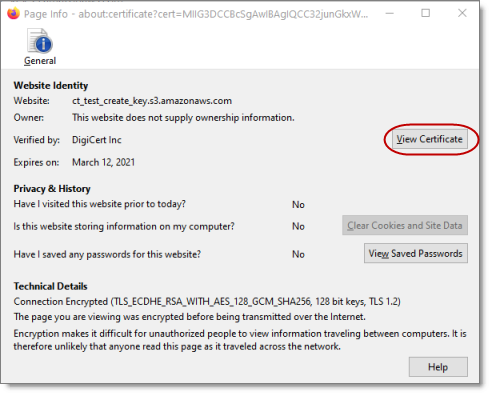
- Click View Certificate.
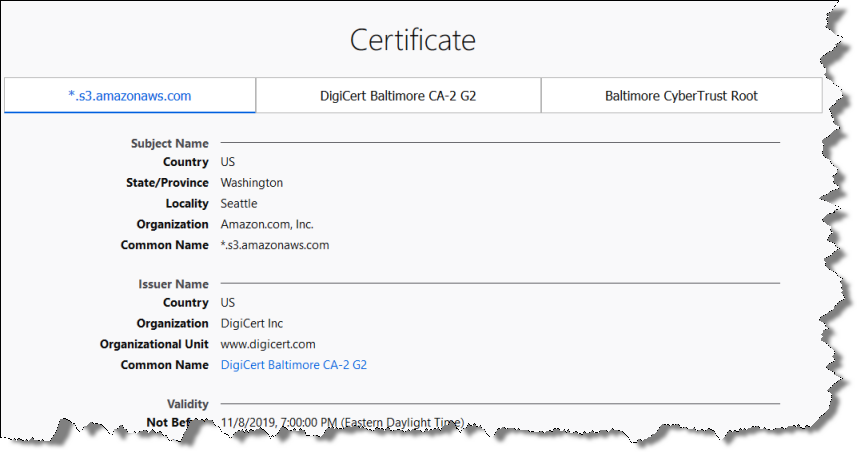
The Certificate page opens.
-
Scroll down to the Miscellaneous section.
-
In the Download row, click the PEM (cert) link.

- In the dialog box that opens, click OK to save the certificate file to a known location.

-
Navigate to the location for saving the file, and then click Save.
-
Next, you do one of the following:
-
To resolve communication errors with the Clay Tablet License Server, you import the downloaded SSL certificate into your Firefox certificate store. For detailed instructions, see Importing an SSL Certificate into Your Firefox Certificate Store.
-
To resolve communication errors with AWS S3, you import the exported SSL certificate into Your Java Trusted Keystore. Do one of the following:
3 - Importing an SSL Certificate into Your Chrome Certificate Store
You import an exported SSL certificate into your Chrome certificate store to display the license keys for the Clay Tablet License Server so that they are available for selection.
To import an SSL Certificate into your Chrome certificate store:
- In the Chrome browser, click the Customize and control Google Chrome icon in the top right corner, and then click Settings.
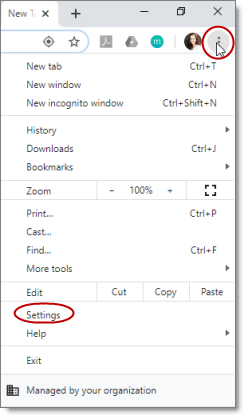
The Settings page opens.
-
In the menu on the left, click Privacy and Security.
-
Scroll down to the bottom of the section.
-
In the Manage certificates sub-section, click the icon.
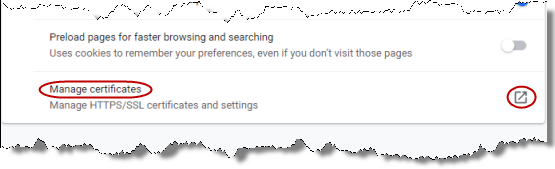
The Certificates dialog box opens.
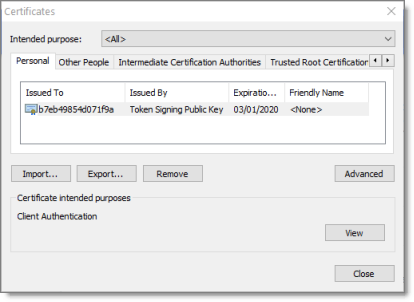
- Click Import.
The Certificate Import Wizard opens.
- Click Next.
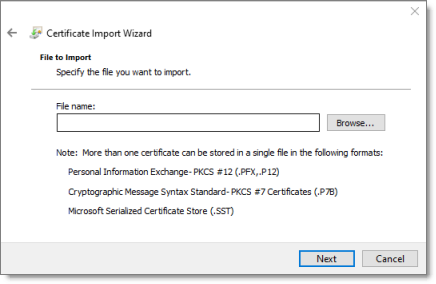
The File to Import page of the wizard opens.
-
Click Browse, and navigate to and select the SSL certificate you previously exported. Then click Open.
-
Click Next.
-
In the Certificate Store page of the wizard, browse to the certificate store where you want to save the certificate. Then click Next.

- In the final page of the wizard, review your settings and click Finish.

The certificate is imported into your Chrome certificate store.
4 - Importing an SSL Certificate into Your Firefox Certificate Store
You import a downloaded SSL certificate into your Firefox certificate store to display the license keys for the Clay Tablet License Server so that they are available for selection.
To import an SSL Certificate into your Firefox certificate store:
- In the Firefox browser, click the Open menu icon in the top-right corner, and then click Options.
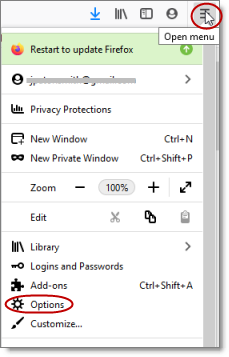
The Preferences page opens.
-
In the menu on the left, click Privacy & Security.
-
Scroll down to the Security section and the Certificates sub-section.
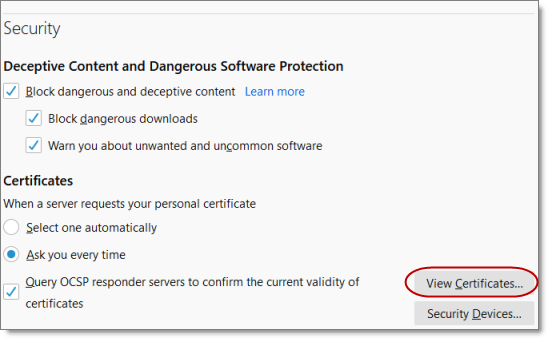
- Click View Certificates.
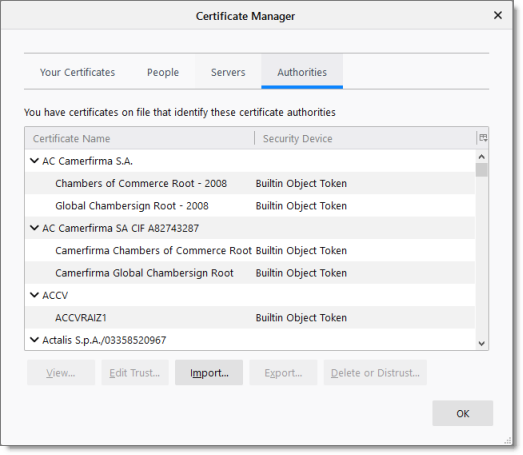
The Certificate Manager opens.
-
Click Import.
-
In the dialog box that opens, navigate to and select the SSL certificate you previously exported. Then click Open.
The certificate is imported into your Firefox certificate store, and a message box states that the import was successful.